
Android POS vs Windows POS Hardware: What to Confirm before a quotation
Choosing an operating system is not only a software decision when you are sourcing a POS terminal.
Android and Windows POS hardware can use different drivers, ports, peripheral combinations and service expectations. Confirming those details before a quotation request helps a POS dealer, VAR or software team evaluate the right model before testing a device that cannot fit the checkout workflow.
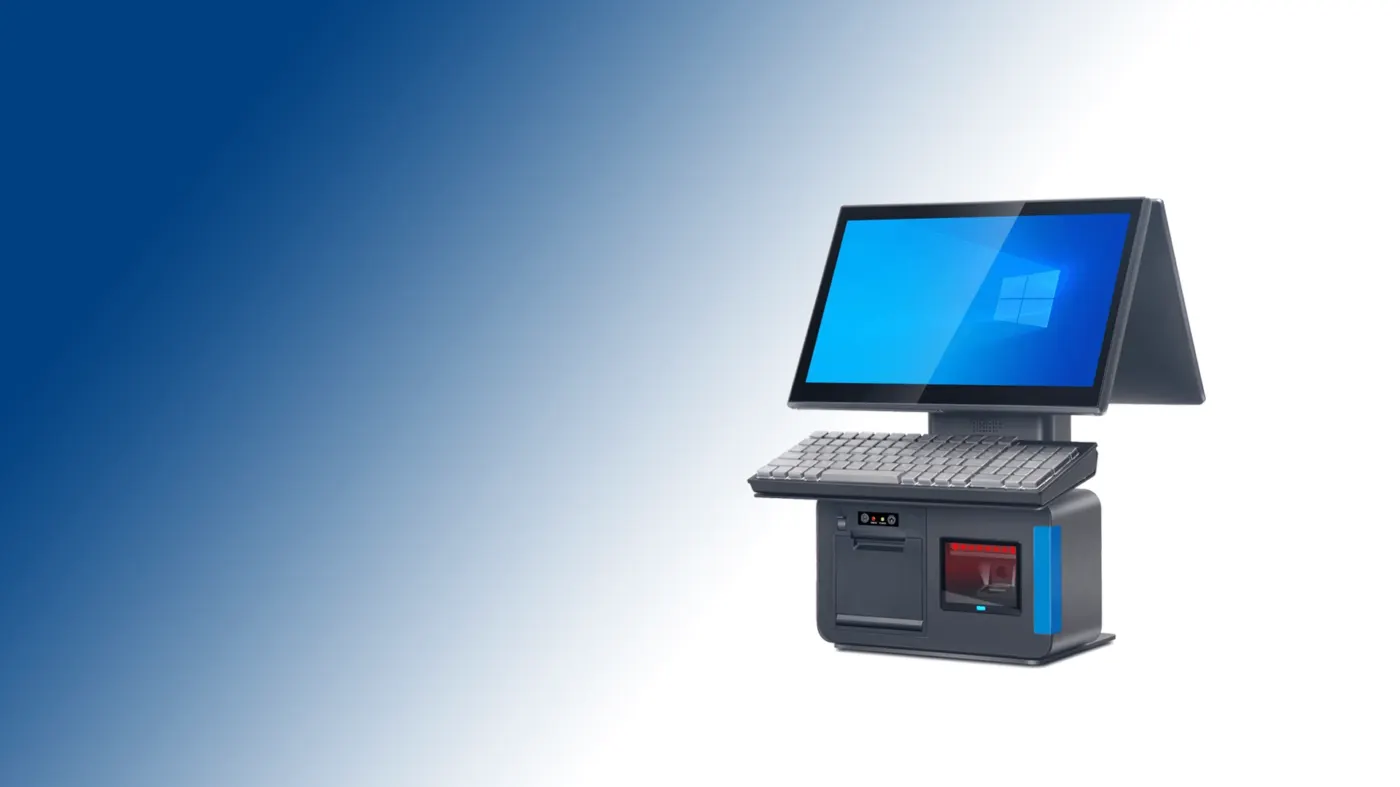
Both platforms can support a POS project, but the hardware confirmation list is different. An Android POS terminal usually needs a confirmed Android version, application installation method and Android-compatible peripherals. A Windows POS terminal may require a specific Windows edition, x86 software, device drivers or legacy interfaces.
Common Configuration questions
- Which operating-system version is required?
- Which ports and peripherals must be connected?
- Does the requested printer or scanner need a specific driver?
- Which accessories and power plug should be packed?
- What photos or checks are needed before shipment?
Why the Android or Windows choice changes a Configuration request
That does not make one platform universally better. The practical question is whether the proposed POS hardware matches the buyer’s existing software environment, counter layout and support process. Confirm the model and configuration, not only the operating-system label.
Android POS vs Windows POS hardware: the points to compare
1. Operating system and software environment
Record the required operating-system version and how the POS application will be installed or connected. For Android, ask whether the application is delivered through an APK, managed device process or another approved method. For Windows, confirm the required Windows version, processor architecture, driver installation and update policy. The buyer’s software team should make the final compatibility decision.
2. Processor, memory and storage
Compare the actual processor family, RAM and storage configuration for the model being Configurationd. Avoid relying on a generic “Android POS” or “Windows POS” description because the same enclosure may be offered with several configurations. If the application uses local databases, multiple displays, video or peripheral middleware, include those requirements in the Configuration brief.
3. Ports and peripherals
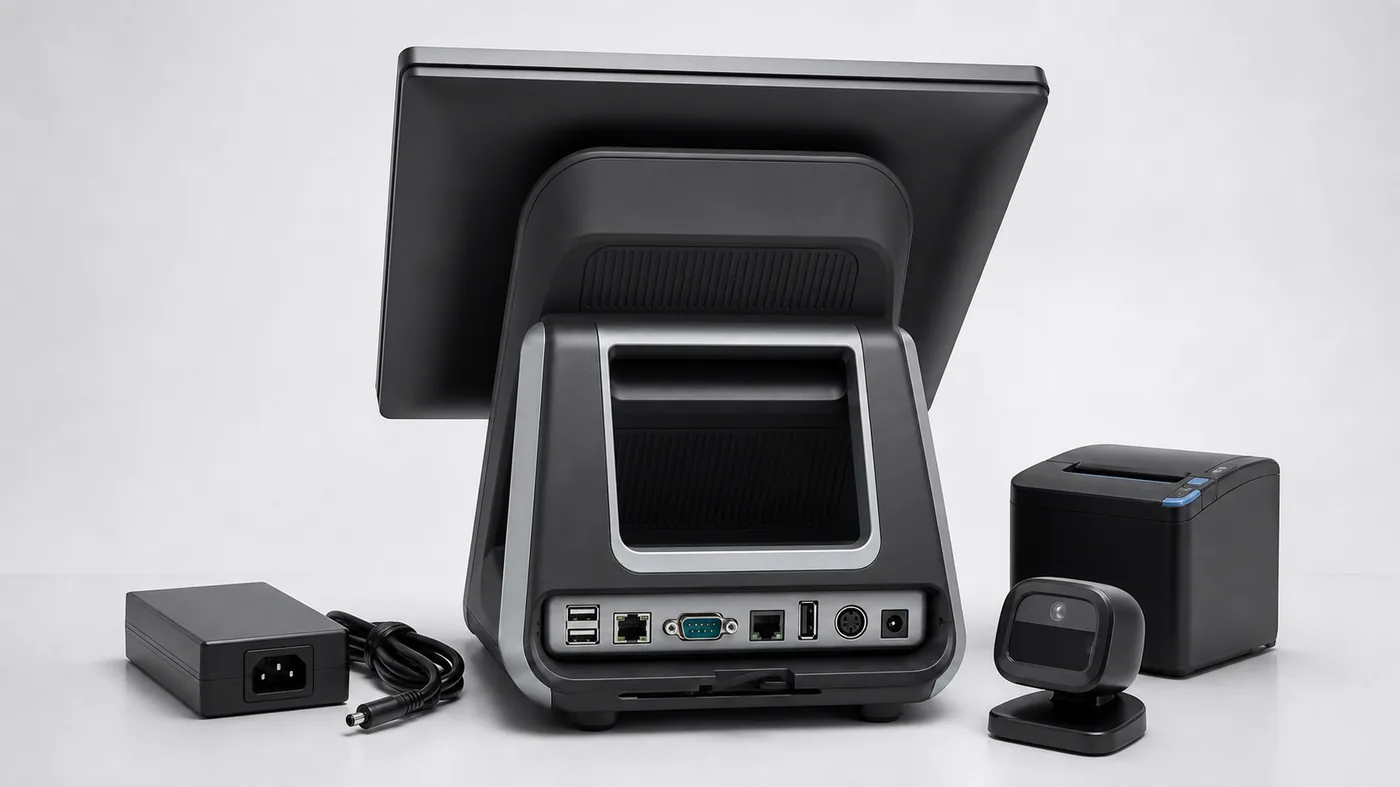
List every device that must connect at the counter: receipt printer, barcode scanner, cash drawer, customer display, payment device, weighing scale or kitchen printer. Confirm the port type and location, such as USB, Ethernet, RS232, RJ11 or a proprietary interface. A port that exists on a product sheet may still be unsuitable if its protocol, power output or driver is different. The POS terminals range can be used as the starting point for comparing these configurations.
4. Display, printer and enclosure details
Check screen size, touch technology, viewing direction, customer-display options and the available counter footprint. If the unit includes a thermal printer, confirm paper width, cutter behaviour and access for maintenance. Ask for rear and side photos when cable access or mounting space matters to the installation.
What to send before requesting Android or Windows POS options
- Target platform and required operating-system version.
- POS application name, installation method and any driver or middleware requirement.
- Required peripherals and the exact port or protocol for each connection.
- Screen size, customer display, printer, scanner and cash-drawer expectations.
- required quantity, destination market and the checks your team wants to complete.
- Photos, videos or packing details needed before the quotation is approved for internal review.
When Android may fit a POS project
Android may be a practical fit when the checkout application is designed for Android, the buyer wants a compact appliance-style terminal, or the project uses standard Android peripherals. Confirm the supported Android version, application permissions, update approach and whether the required printer or scanner has a compatible SDK or connection method.
When Windows may fit a POS project
Windows may be a practical fit when the POS software already runs on Windows, depends on Windows drivers, or needs a broader range of desktop interfaces. Confirm the Windows edition, processor architecture, driver availability, storage recovery method and the number of USB, serial or network connections required at the counter.
A simple Configuration-review format
Platform: Android or Windows
Model and configuration: CPU / RAM / storage / display
Ports and peripherals: printer / scanner / drawer / customer display
Configuration checks: application setup / connections / photos / packing
Open items: details still requiring buyer or supplier confirmation
Configuration review before a quotation
Before ordering, use Tesp’s Configuration Review to confirm the selected model and accessories. When the requirements are ready, Share your POS hardware requirements with the product, configuration and quantity you need.
FAQ
Is Android or Windows better for a POS terminal?
Neither platform is automatically better. The right choice depends on the POS application, drivers, peripherals, counter layout and the support process your team can maintain.
What should I confirm for a Windows POS terminal?
Confirm the Windows edition, processor architecture, driver requirements, storage and recovery method, plus every USB, serial, network or printer connection needed by the checkout workflow.
Can an Android POS terminal include a thermal printer?
Yes, some Android POS terminals include a built-in thermal printer. Confirm paper width, cutter, SDK or connection method, maintenance access and whether the printer works with the intended POS application.
Should I request a quotation before finalizing the model?
A Configuration is useful when the software team needs to check the application, peripherals and physical counter fit. Send the full configuration first so the Configuration represents the model you may actually order.