
Dual Screen POS Terminal for Retail: Customer Display Requirements Before Integration
A second POS screen is only useful when the customer sees the right information at the right time.
Before ordering a dual screen POS terminal for retail, define the display states, connection method and software ownership instead of treating the extra screen as a decorative option.
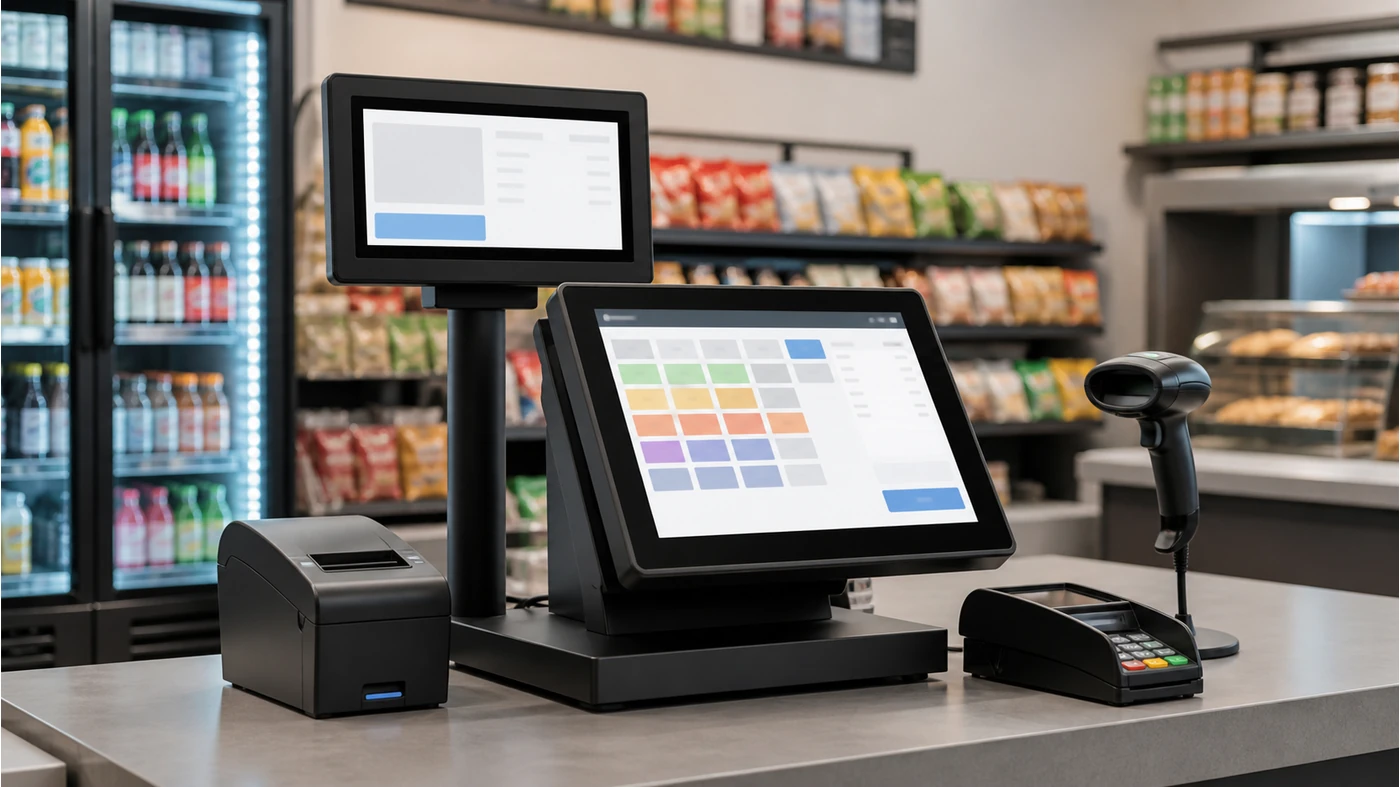
Searches for a dual screen POS terminal for retail often start with screen size. The harder question is what the second display must do. Some systems show the live cart and total; some show payment prompts; others use the display for idle promotions. A screen that merely mirrors the cashier interface can create a poor customer experience and may not meet the software team’s integration plan.
Retail VARs and POS-focused ISVs should therefore define the customer display as a workflow component. The display, operating system, graphics output, software profile, touch behavior and payment handoff need to be checked together.
F1: an integrated reference point
The manual lists F1 with a 15.6-inch 1920×1080 main display, a 15.6-inch 1920×1080 customer display, a built-in barcode scanning platform and a built-in 58mm receipt printer.
S3: a configurable reference point
S3A/S3W standard configurations do not include a customer display, but the manual lists optional 9.7-inch, 10.1-inch, 15-inch or 15.6-inch customer display choices depending on the project.
Why a customer-facing display is more than a second monitor
Competitor documentation commonly separates the display into idle, selling and paid states. During idle time, a retailer may show a welcome screen or promotion. During a sale, the customer may need to see items, quantity, discounts, tax and the running total. After payment, the screen may show a receipt choice or a thank-you state. These are software decisions even when the hardware looks simple.
The same hardware can behave differently depending on whether the POS application mirrors the primary display, extends a second desktop, or uses a dedicated customer-display profile. That is why the long-tail query customer-facing display POS requirements should lead to a requirements list, not a generic screen-size recommendation.
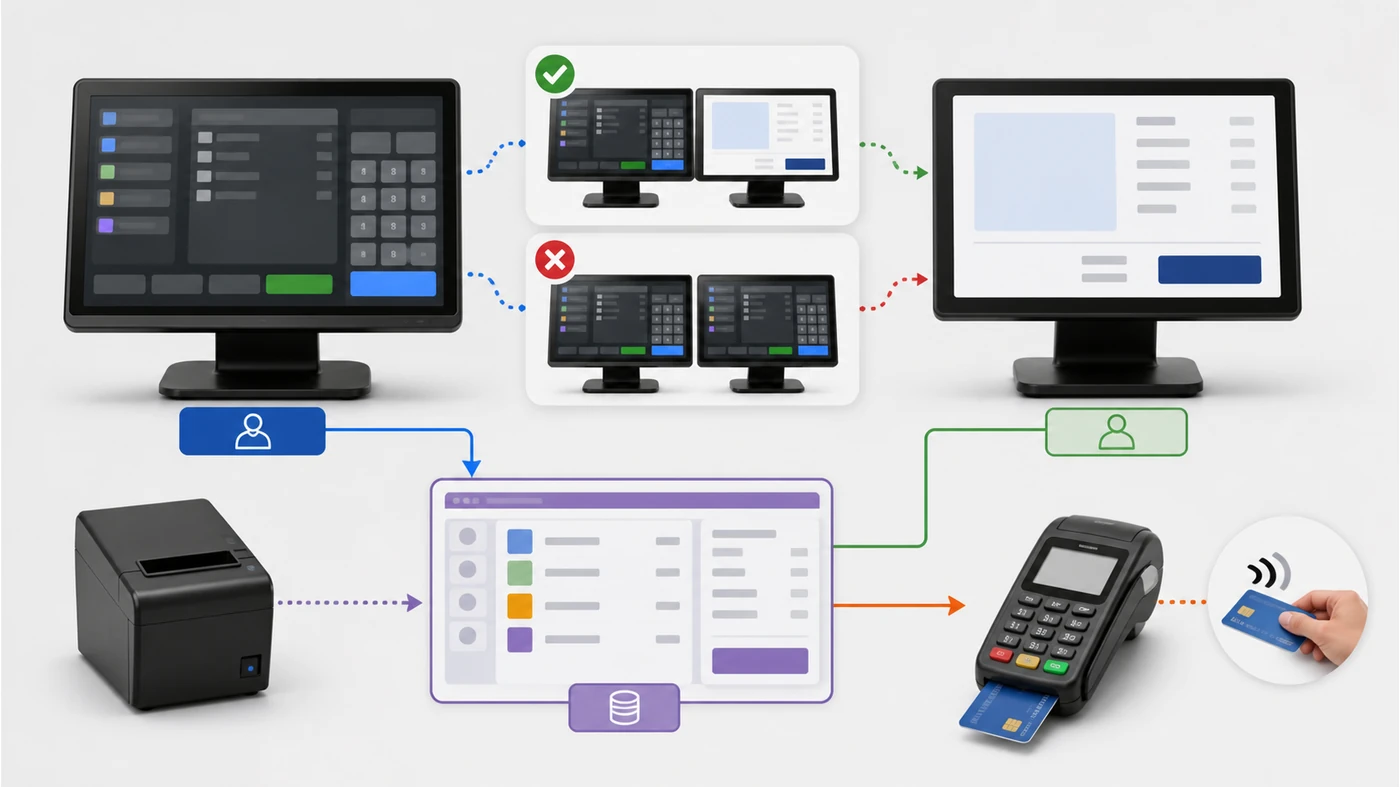
Five checks for a POS second screen integration
1Define the customer view by transaction state
Write down what appears before, during and after a sale. “Customer display” is not a sufficient software requirement because it does not say whether the screen shows item lines, totals, payment prompts or promotions.
- Idle: welcome message, static image or rotating promotion.
- Selling: item name, quantity, price, discount, tax and running total as required.
- Paid: receipt, change, feedback or next-customer state.
Acceptance impact: capture screenshots or a short screen recording from the sample and compare it with the agreed state list.
2Confirm screen ownership and touch behavior
F1 lists a 15.6-inch customer display, but the manual does not by itself define whether that display is touch-enabled or how the application assigns input. For S3, the customer screen is optional and may be a different size from the main display.
- State whether the second screen is display-only or interactive.
- Confirm which screen receives touch, keyboard or scanner focus.
- Ask whether the software uses a dedicated customer-display profile or an extended desktop.
Acceptance impact: a customer should not accidentally control a cashier workflow, and the cashier should not lose input focus when the second screen wakes.
3Match the graphics and connection path
Do not assume that two screens with the same resolution use the same connection path. Ask the supplier and software team to confirm the graphics output, adapter, power method and startup behavior for the exact platform.
- Record the primary and customer display resolution requested by the project.
- Confirm whether the second screen is integrated, cabled externally or connected through a project-specific hub.
- Test cold boot, application restart, sleep/wake and cable reconnection.
Acceptance impact: the sample should return to the correct customer view after a restart without manual desktop rearrangement.
4Test the whole checkout bundle
F1 combines the second screen with a barcode scanning platform and 58mm thermal printer. If the project uses a separate printer, payment terminal or scanner, the screen test should still run the same order of operations as the final station.
- Scan an item, add a quantity, apply a discount and remove an item.
- Print a receipt while the customer display remains active.
- Run payment handoff and return to the idle screen.
Acceptance impact: identify whether a peripheral driver, print dialog or payment window appears on the customer-facing display by mistake.
5Check viewing angle, counter geometry and service access
A perfect software layout can still fail if the customer display faces the cashier, sits behind a product basket or cannot be tilted for different customer heights. Record the actual counter position and the angle needed for the target store.
- Send a front and side photo of the planned checkout position.
- Confirm hinge range, stand footprint and cable exit direction.
- Check that staff can service the printer and scanner without removing the customer screen.
Acceptance impact: approve the physical arrangement only after the software view and customer line of sight work together.
When F1 should not be compared directly with S3
F1 is a practical all-in-one reference: customer display, scanner platform and 58mm printer are part of the listed standard configuration. S3A and S3W are higher-performance POS terminal options with a standard single main display and optional customer-display choices. A buyer evaluating software multi-screen behavior should not use an F1 sample to sign off an S3 platform without repeating the test on the intended configuration.
Start with the POS terminals range to define the product form, then use POS configuration review to record the display, peripheral and software questions in one sheet. If a self-service workflow is involved, compare it separately with the self-checkout kiosk range rather than forcing a counter terminal into a kiosk use case.
Field note: “Add a second screen” is not a complete configuration request. The supplier needs the display size, resolution, orientation, touch requirement, cable path and software state behavior before the sample can prove anything useful.
A practical dual-display request format
Project: [retail / grocery / restaurant]
Primary terminal: [F1 / S3A / S3W / other]
Main display: [size / resolution / touch]
Customer display: [size / resolution / touch or display-only]
Display states: [idle / selling / paid]
Connection method: [integrated / external / to be confirmed]
Peripherals: [scanner / printer / payment terminal]
Software behavior: [profile / extended desktop / mirror]
Acceptance sequence: [scan → edit cart → pay → print → reset]
Open items: [driver, port, power and mounting confirmations]
Ready to choose a dual-screen checkout? Compare the F1 integrated dual-screen POS with S3 customer-display options, then request a dual-screen POS quotation. Include your preferred model, customer-display requirements, POS application, quantity and destination. Tesp can help compare the available hardware configuration; final software acceptance remains with your technical team.
FAQ
Is a dual-screen POS terminal the same as a customer-facing display?
Not always. “Dual-screen” describes the hardware arrangement, while a customer-facing display describes the role and content shown to the customer. Confirm whether the second screen is mirrored, extended or controlled by a dedicated customer-display profile.
What should an ISV test on an F1 customer display?
Test idle, live-cart and paid states, then repeat the sequence after reboot and application restart. Also confirm scanner input, 58mm printing and payment handoff do not place dialogs or focus on the wrong screen.
Can S3 be quoted with a customer display?
Yes, the product manual lists optional customer display sizes for S3 configurations. The exact size, connection method, touch behavior and software support should be written into the project quotation rather than assumed from the product family name.